
Web Workspace
markitai serve opens a web workbench on your machine: drop in files or a folder, paste links, watch progress, compare each result with its original and download everything. It speaks English, Chinese and Japanese and works on a phone.
Jobs and history stay on disk. Nothing leaves the machine except what goes to the fetch strategies and LLM providers you configure.
Starting the Server
The workbench is built into markitai: nothing else to install.
curl -fsSL https://markitai.dev/setup.sh | shpowershell -ExecutionPolicy ByPass -c "irm https://markitai.dev/setup.ps1 | iex"markitai serveThe browser opens http://127.0.0.1:3600 with the access token.
| Flag | Default | Description |
|---|---|---|
--host | 127.0.0.1 | Interface to bind. 0.0.0.0 lets other devices in |
--port | 3600 | Port to listen on (0: any free port) |
--no-open | off | Do not open the browser |
--no-auth | off | Disable the access token |
--allowed-host <hostname> | — | Extra hostname to accept when you browse to a DNS name instead of an IP (repeatable) |
-c, --config <path> | — | Another config file, as for conversions |
--config-json <json> | — | Overrides merged over the config file |
One server runs per ~/.markitai; it prints its address and the folder where jobs are kept.
Access Token
At startup the server prints a URL ending in #token=…; the browser it opens uses it. Every client needs the token, this machine included: open that URL, and have scripts send Authorization: Bearer <token>.
MARKITAI_SERVE_TOKENkeeps the same token across restarts (set it in the environment, not in.env).--no-authdrops the token: this machine gets everything; other devices may upload, download and use history, but submit no URL and reach no settings.- Settings → Access token regenerates the token, signs a tab out, and creates user tokens for other people: they convert files and public URLs, see only their own conversions and can bring their own models.
Downloads use single-use links that expire after a minute, so the token never lands in the browser history. Details: access tokens and user tokens.
Accessing from Other Devices
Bind every interface, then open the printed token URL on the phone or laptop:
markitai serve --host 0.0.0.0Reaching it through a DNS name rather than an IP? Add --allowed-host convert.example.com. Unknown hostnames are refused, which blocks DNS-rebinding attacks from web pages.
WARNING
The token URL is a credential. Whoever holds it can run conversions with your LLM providers and read, download or delete history. Share it only with devices you trust.
The Workspace
| Place | What it does |
|---|---|
| Convert | Paste URLs (one per line), drop files or a folder, or Upload. Nothing is sent before Convert. A .urls file is a list of URLs, as on the command line |
| Options | A dialog (a sheet from the bottom on a phone): Preset, Enhance (LLM, OCR and its language), Images, Output (profile, document JSON), Advanced (URL, Files, Pages, Other), and the equivalent command line to copy. A dot on Options means the choices differ from the defaults; Save as default stores them |
| Conversions | Every item, grouped by submission, live. Filter by name, Failed or Notices; check rows to delete or Re-convert several; Stop remaining stops what has not started; "⋯" has Retry failed and Download all |
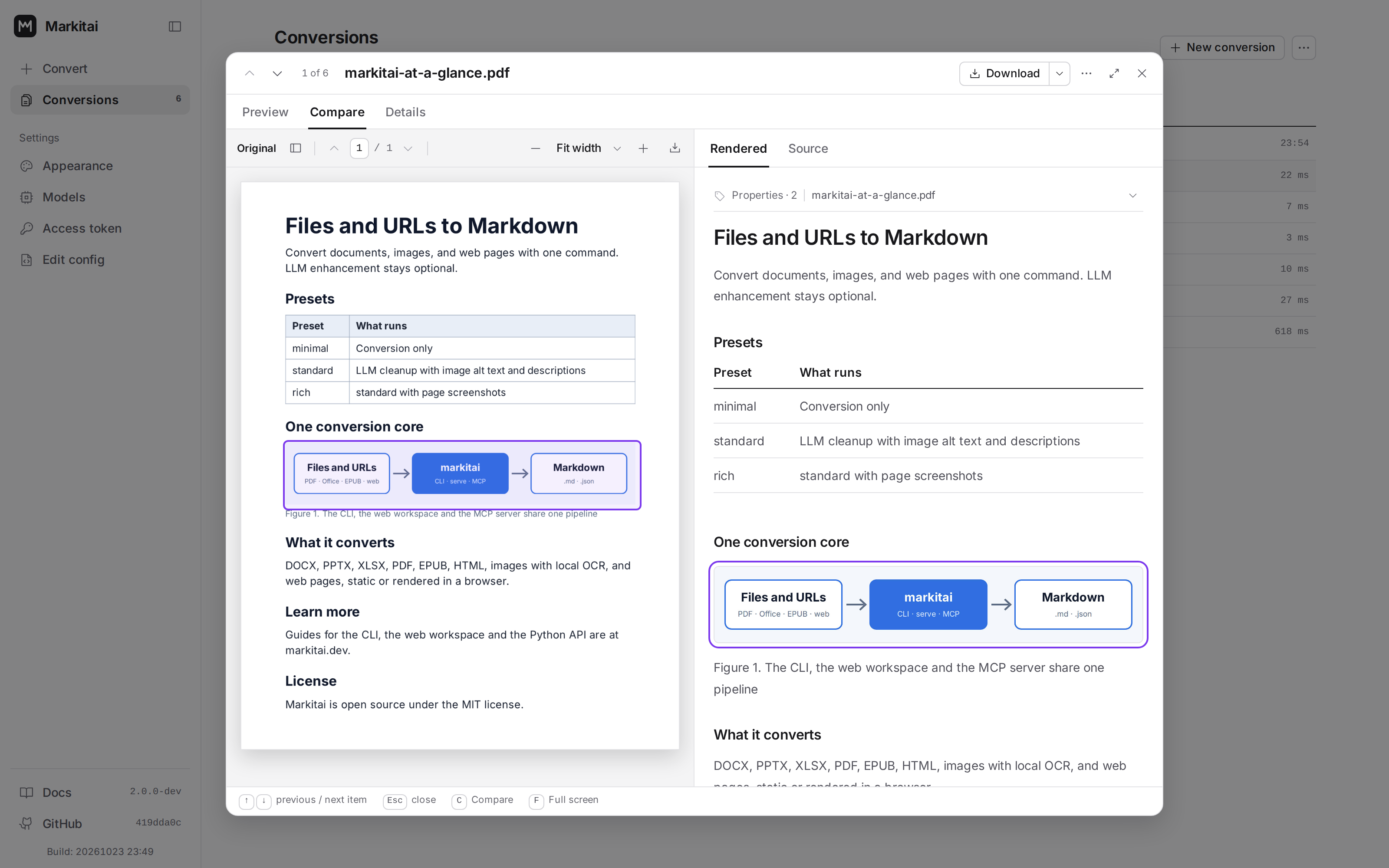
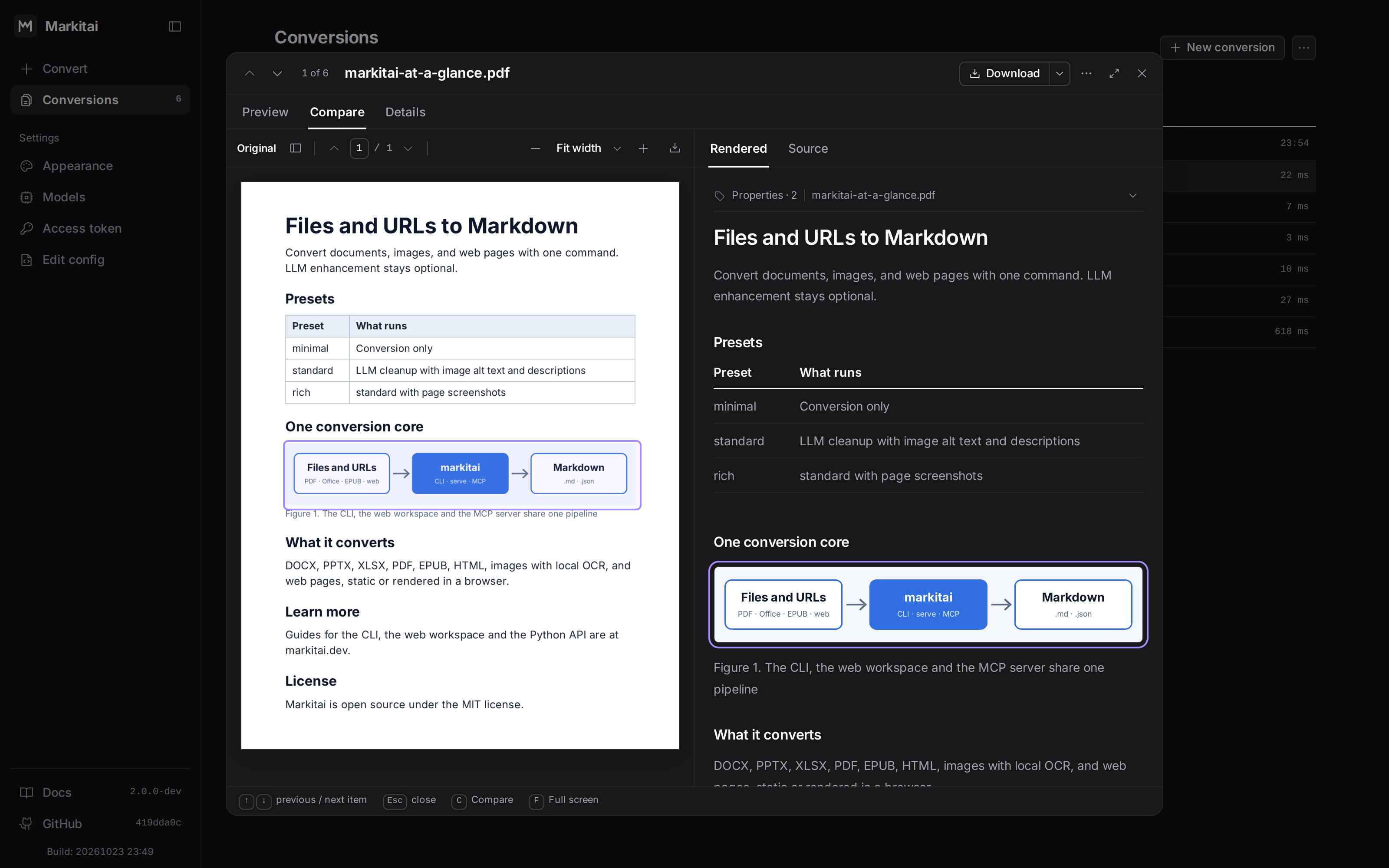
| Conversion window | Click an item: Preview (Rendered with tables, math and diagrams, Source, Files, Diff), Compare (the original beside the Markdown, with matching parts outlined), Details (status, sizes, models, cost, the request options as a command line, notices, the result's start) |
| Settings | Appearance and language, Models, Access token, Edit config |
In the window, ↑/↓ moves between items, C opens Compare, F fills the browser and Escape closes it. On a phone the places move to a bottom bar and the window fills the screen.
- Cost is shown only when it is known: an unpriced model reads "unknown", never
$0, and a partly priced item "at least" its amount. - Notices flag what did not fail but deserves a look: pages that look scanned, hidden PDF text, OCR that found nothing, slides that could not be rendered, an LLM step that failed and kept the plain result.
- Limits: 1000 items per job, 100 MB per file, 5 GB per upload.
More on each place: workspace details.
Presets, Overrides and Commands
Presets match the CLI:
| Preset | LLM | alt | desc | screenshot | OCR |
|---|---|---|---|---|---|
minimal | – | – | – | – | – |
standard | ✓ | ✓ | ✓ | – | – |
rich | ✓ | ✓ | ✓ | ✓ | – |
No preset turns on OCR: you pick it yourself. Picking a preset resets those five switches; changing one keeps the rest and shows Custom.
LLM Settings
Settings → Models edits the same configuration as markitai config, for web jobs and later CLI runs alike. Add models opens a picker of about 95 providers: enter a key (and an address for a server of your own), then pick models from the provider's list or type their IDs. A key variable set on the server (OPENAI_API_KEY, ...) shows up as a ready connection; the (i) beside a key field names the variable. Kimi's open platform and Kimi Code are one Kimi card: paste either key and its models are saved under the service that accepts it. Stored keys are only ever shown masked (sk…7890).
Test says why a model failed: no key, key rejected, unknown model, rate-limited, unreachable, timed out, or another provider error, with the provider's own message.
The settings page never sends a key to an address you did not save it with, and never sends the server's own logins anywhere: see key and address rules. Subscriptions run through their CLIs on the server's machine; the picker names the command that installs or signs in a missing one (Claude and Copilot, ChatGPT).
Settings → Edit config edits the configuration file as text, secrets masked, with a line diff before saving: see Edit config.
History
- Finished jobs stay in Conversions for 7 days (Details shows the date), through reloads and restarts, under
~/.markitai/serve/jobs/. Expired files are deleted within the hour. - CLI runs started with
--record-historyappear too; Details says "Recorded by: the command line". Their URL items can be retried or enhanced; their file items cannot, because the CLI keeps only the outputs. - An
--llm-batchrun that stopped waiting lists its pending items as skipped (pending batch). Collect them with themarkitai --llm-batch-collectcommand the run printed; the workbench refuses to retry them, which would pay twice.
Updating
The startup lines name a newer release. markitai update updates the program and offers to restart the server: it lets running and queued conversions finish, then comes back on the same address with the same token. If the new version does not start, the old one is put back.
API
The workbench runs on a REST + SSE API that scripts call with the same token: POST /api/jobs to submit, GET /api/jobs/{job_id}/events for progress, GET /api/jobs/{job_id}/archive for the zip. The OpenAPI document is GET /api/openapi.json. Routes and the main error codes: API reference.
curl -H "Authorization: Bearer $MARKITAI_SERVE_TOKEN" \
  -F [email protected] -F 'options={}' http://127.0.0.1:3600/api/jobs